The draw screen is designed to allow the user to set the drawn race for the entries that were taken into the condition book races for the specified date. The user will enter the race date and card and a grid will be populated of all the condition book races for that date. The grid will be sorted by drawn race and if no races have been drawn yet, then the sort will be by the cond #. Each row will contain the Race #, Cond #, Age, Sex, Race Type, Breed Type, Surface, Distance and Purse of the race. The user may then enter the draw race number in the "Race #" field and choose the race number this race was originally defined as in the "Cond #" drop down. Press the 'Edit' button to proceed with drawing the entries into this race.
Click here for instructions on how to include a Simulcast race in your Live card.
To delete a drawn race, highlight the race to be deleted and press the 'Delete' button. The draws will be deleted from the race but the entries are not deleted from the Condition Race. The race will now be available to be drawn in as another race.
Chute and Stretch - Designates whether this race will come out of the chute or stretch. Note, this only used if the track can run the distance in two locations.
Divided - If the race is split then the user should check this box. If this check box is selected then the user may draw other races into the same condition book number.
Rail - If the race is a turf race, the user can enter text here designating how many feet from the rail the race will be run.
Exclusions - This number should represent the number of horses excluded from the race. When the race is updated the system will check the number of horses plus the number entered into the excluded field and compare it against the total number of entries. A validation will fire to make sure that the user has accounted for all entries in a race.
Drawing Sequence - Races can be drawn in two ways. One via sequence numbers, or by a Manual draw.
1. Sequence Numbers - Take the entry blanks and key in the sequence number that is located on the entry blank. Simply enter the sequence number in post position order, the sequence number will pull the data from the original entry and fill the data in automatically.
2. Manual Draw - If an entry has not been made for the drawn horse, enter an "M" and this will move you to the detail section and you will be able to manually enter the information about the draw.
ReNumber Entries - This check box will automatically renumber the program numbers for races with entries/fields/scratches. The grid will automatically be sorted into program number order and once the renumber selection is checked the user may not alter the details of each record. To change any details the user must uncheck the box.
Auto Couple - This button once pressed will automatically couple all same owner and trainer entries.
Condition Text - This will open a text box that will allow the user to edit the condition text paragraph that is used in the program. This text is automatically generated when the race is drawn. NOTE: We need a screen shot of this
Rename race - This will open a window allowing the user to enter/change race names. NOTE: we need a screen shot. Also stakes races have the race names automatically generated and the user may edit as they wish.
Program Comments - Free form comments that are printed at the bottom of the 4x9 and 8 ½ x 11 program.
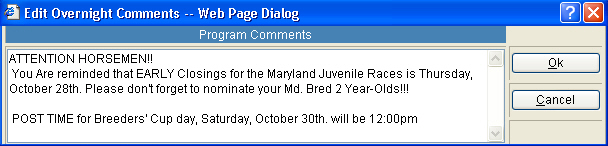
Overnight Comments - Free form comments that are printed at the bottom of the overnight. The overnight comments are kept by race date and they are defaulted from the overnight comments System Admin screen. The data may be altered in the draw screen or via the System Admin.
Scratch button - When this button
is pressed the horse will be scratched.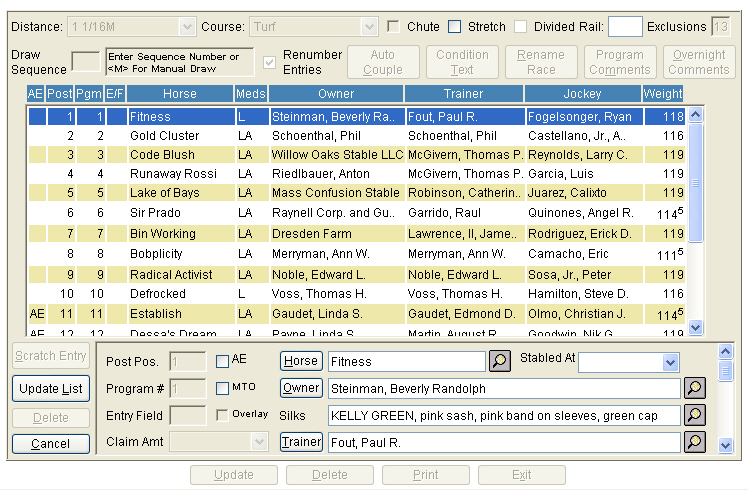
Post Pos - Post position of the horse, when entering the horses the post pos is defaulted in the order you draw horses.
Program # - Program number of the horse.
Entry Field - Enter whether the horse is part of an "a", "b" or "c" entry. If the horse is part of a field enter an "f"
AE - Check this box if the horse is an Also Eligible or Alternate.
MTO - check this box if the race is a turf race and the horse will run only if the race is moved to the main course.
Overlay - This box may be checked to denote that the horse is a "Scratch Overlay". If the horse is checked as a scratch overlay the user should NOT mark it as a scratch. The horse will then be printed as an overlay in the programs and recaps and the data will be transferred accordingly to Equibase.
Claim Amount - If the race is a claim race then a drop down of the valid claim prices is available.
Horse - Enter either the first five letters of the name, any whole word within the name,or the entire horse name and press <Enter> or click the search icon (magnifying glass) at the end of the Horse name field. The system will then display all horse names that contain the characters entered. If a complete name is entered and the system only finds one horse with that name, the system will go directly to the Horse Maintenance screen.
Owner - Enter a minimum of five letters of the horseman’s name and press <Enter>. If the complete name is entered, the system will bypass the scanner and go directly to the Horsemen Details screen. Otherwise, the scanner will appear listing all horsemen matching the characters entered.
Silks - The default will be based on the default from system admin. The silks finder will open up and show all the silks used at the tracks this horse/owner combo has ran previously.
Trainer - Enter a minimum of five letters of the horseman’s name and press <Enter>. If the complete name is entered, the system will bypass the scanner and go directly to the Horsemen Details screen. Otherwise, the scanner will appear listing all horsemen matching the characters entered.
Stabled at - The user may select from a track determined list of stabled @ sites, Bel, Aqu, Sar, etc.

Weight - The weight will be calculated by subtracting all the allowances from the race weight. The user may override this default if appropriate.
Dirt Weight - If the race is a turf race the user may enter a weight the horse will carry if the race is moved from the turf to the dirt.
App Weight - The apprentice bug weight is defaulted here if the jockey is an apprentice rider.
Call # - If the jockey has multiple calls then the user may enter which call number the rider has for this entry, 1, 2, 3, etc.
Backup - If a backup jockey is identified then the user would scan for and place the jockey here.
Supplemented – If this horse is a late entry to a Stake race, a Supplementary Entry indicator will appear at the bottom of the program page depending on your program format.
Gelding Indicator – If this horse is a gelding, but is still listed as a Colt or Horse in the system, a checkmark can be added to the Gelding Indicator box. This will change the sex of this horse to a Gelding FOR THIS ONE RACE DAY ONLY. To permanently change the sex of the horse, the owner must contact The Jockey Club Registry, or the Track Identifier.

Equipment Changes - The choices will be the available equip changes that is defined for the track. The system will validate against what was used in the last start. Example: Blinkers On, if the last start the horse ran with blinkers then a validation will fire.
Medication - The medication will default to the medication used in the last start. The medication choices will be the available medication that is defined for the track. The medication will validate against what was used in the last start and notify the user if they choose inappropriate choices. Example: user picks 1st Lasix and he has used lasix before.
Update List – to save the changes on this entry, click the Update List button.
Cancel – to exit this entry, without saving the changes, click Cancel.
Program Comments
Additional information can be entered into the Program Comments field. This information will print at the bottom of the page on the 8 ½ x 11 program.